***********************************
Btex version 2.9.1
***********************************
What is it? :
-------------
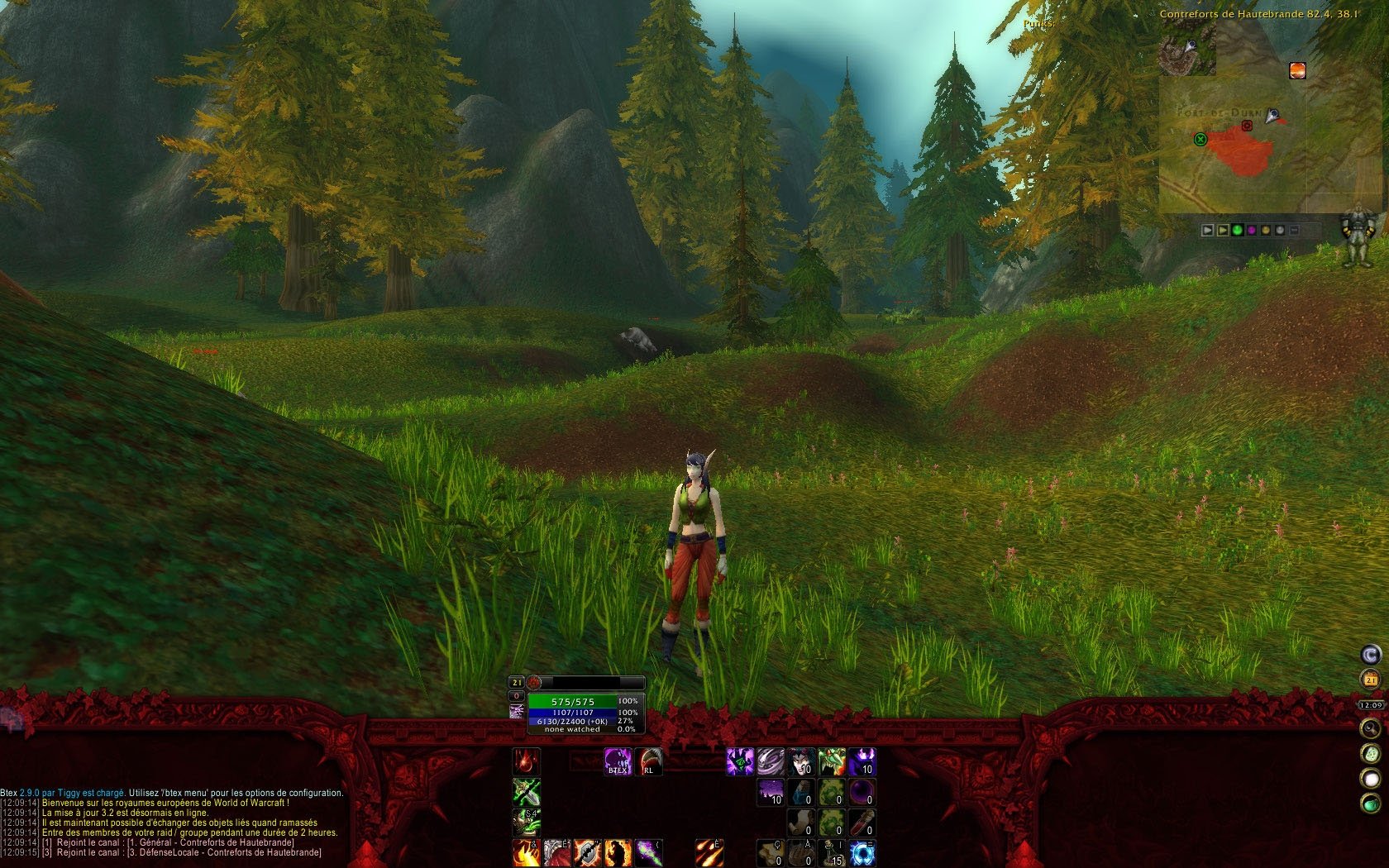
Btex (for 'Bottom TEXture') is a very lightweight addon for World Of Warcraft providing Background texture at the bottom of the screen.
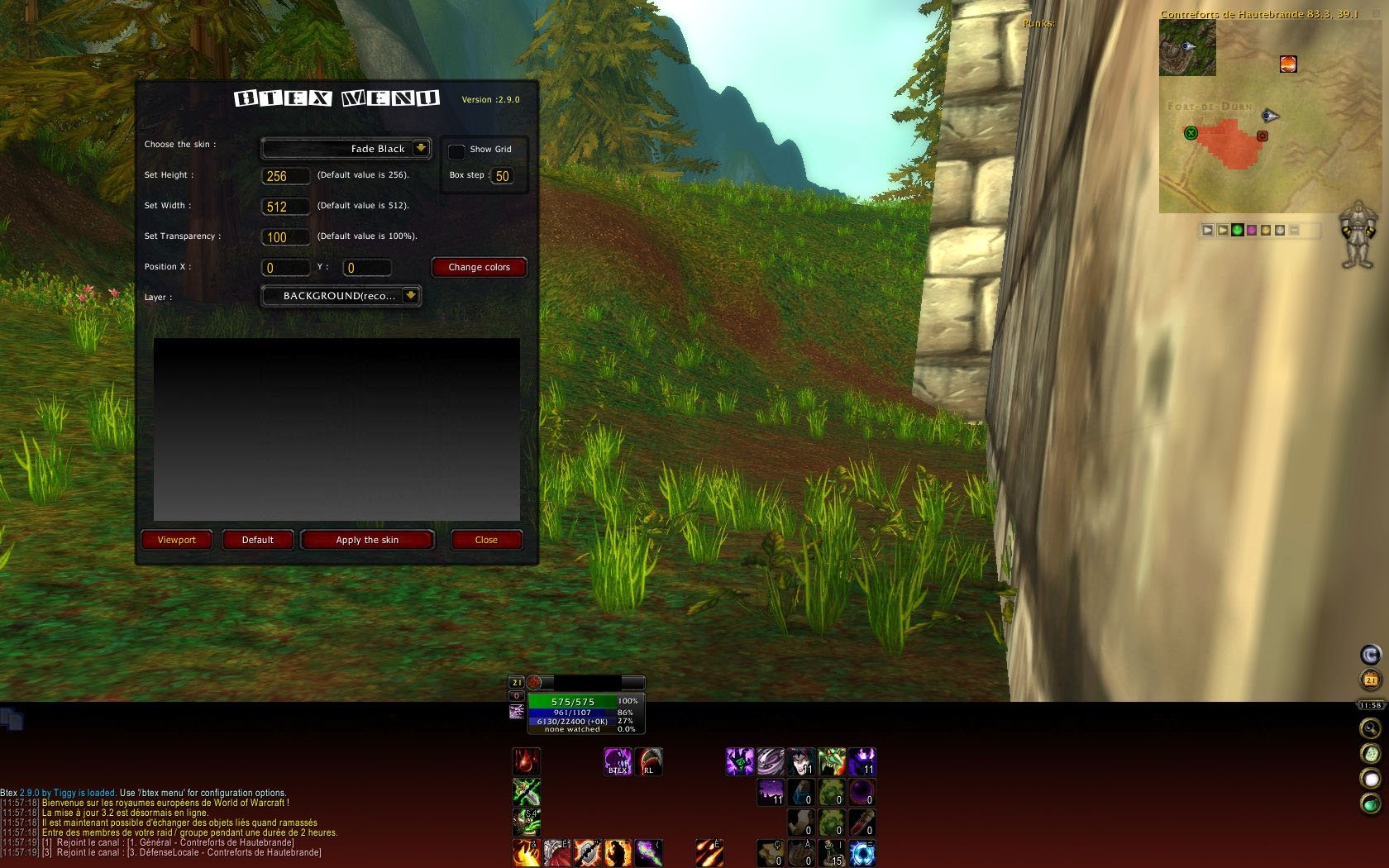
It contains a package of pre-made skins, a simple menu for settings skins, texture height,width,transparency,colors, positions, viewport,etc ..
What can it do? :
-----------------
- Put a texture of your choice on the bottom of the screen via menu options (use /bx menu or /btex menu),
- Set height/width/transparency/position/colors/layer of your texture,
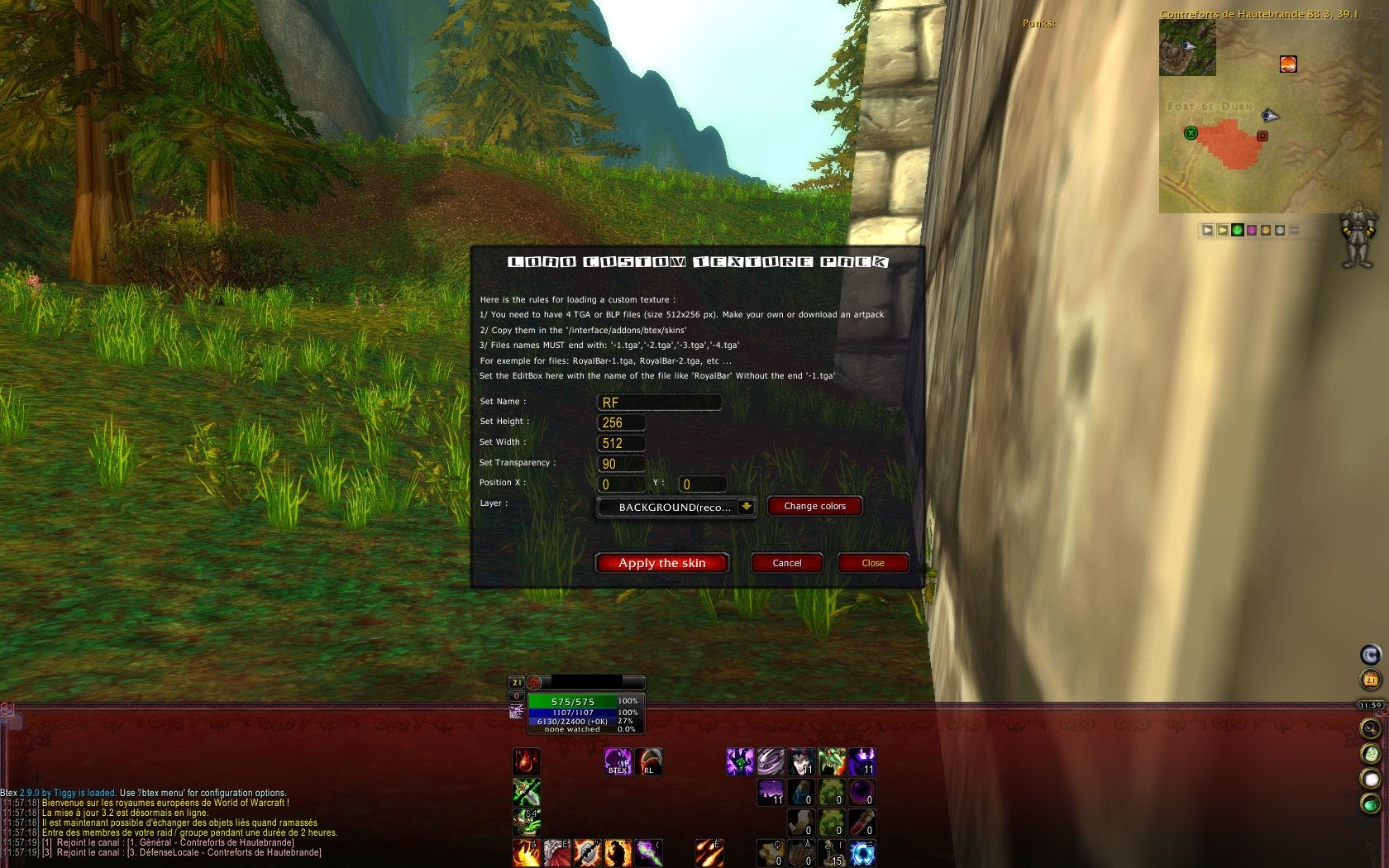
- Use any other TGA/BLP texture file or any other 'pack' of skin,
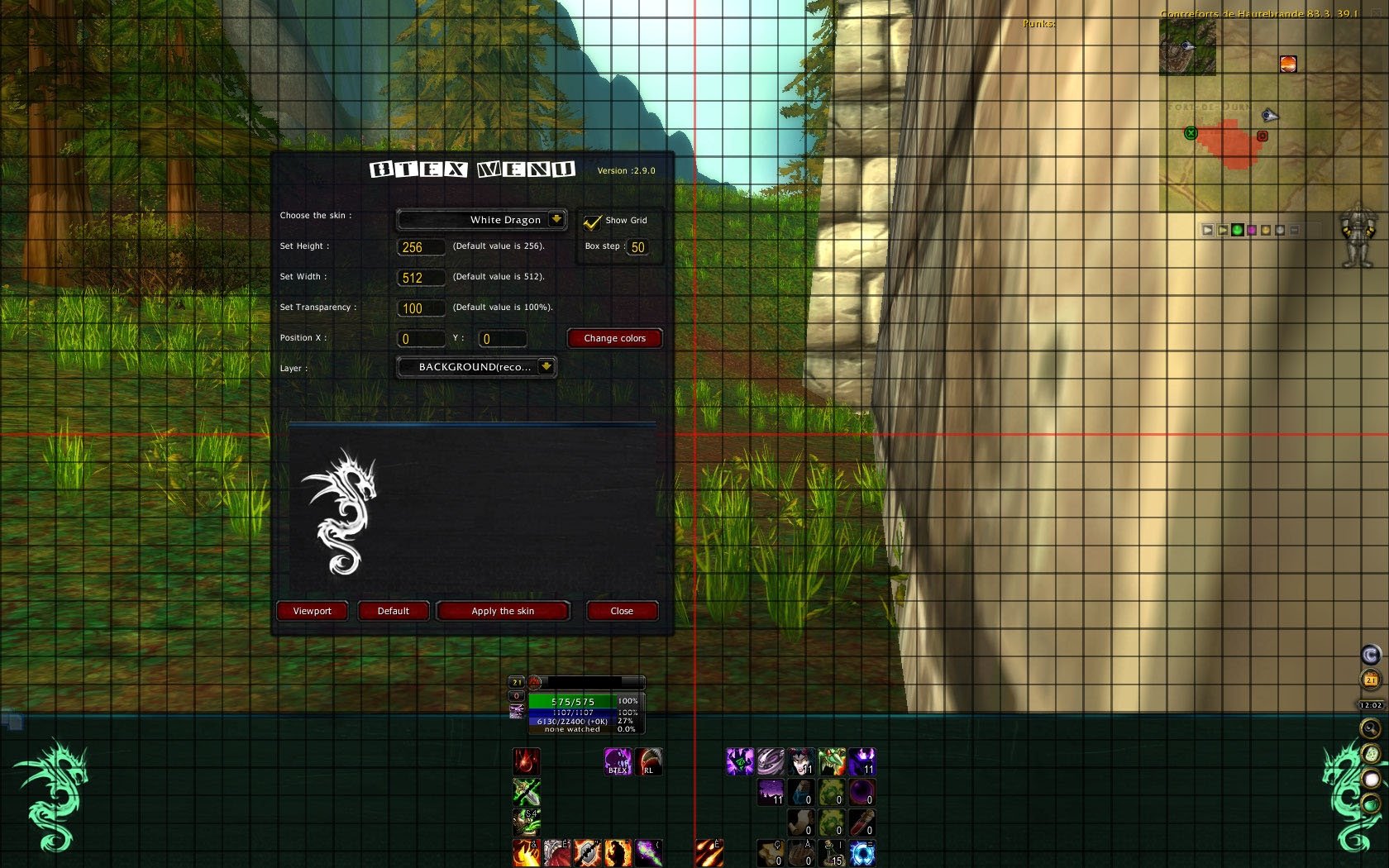
- Display a grid to setup your interface correctly,
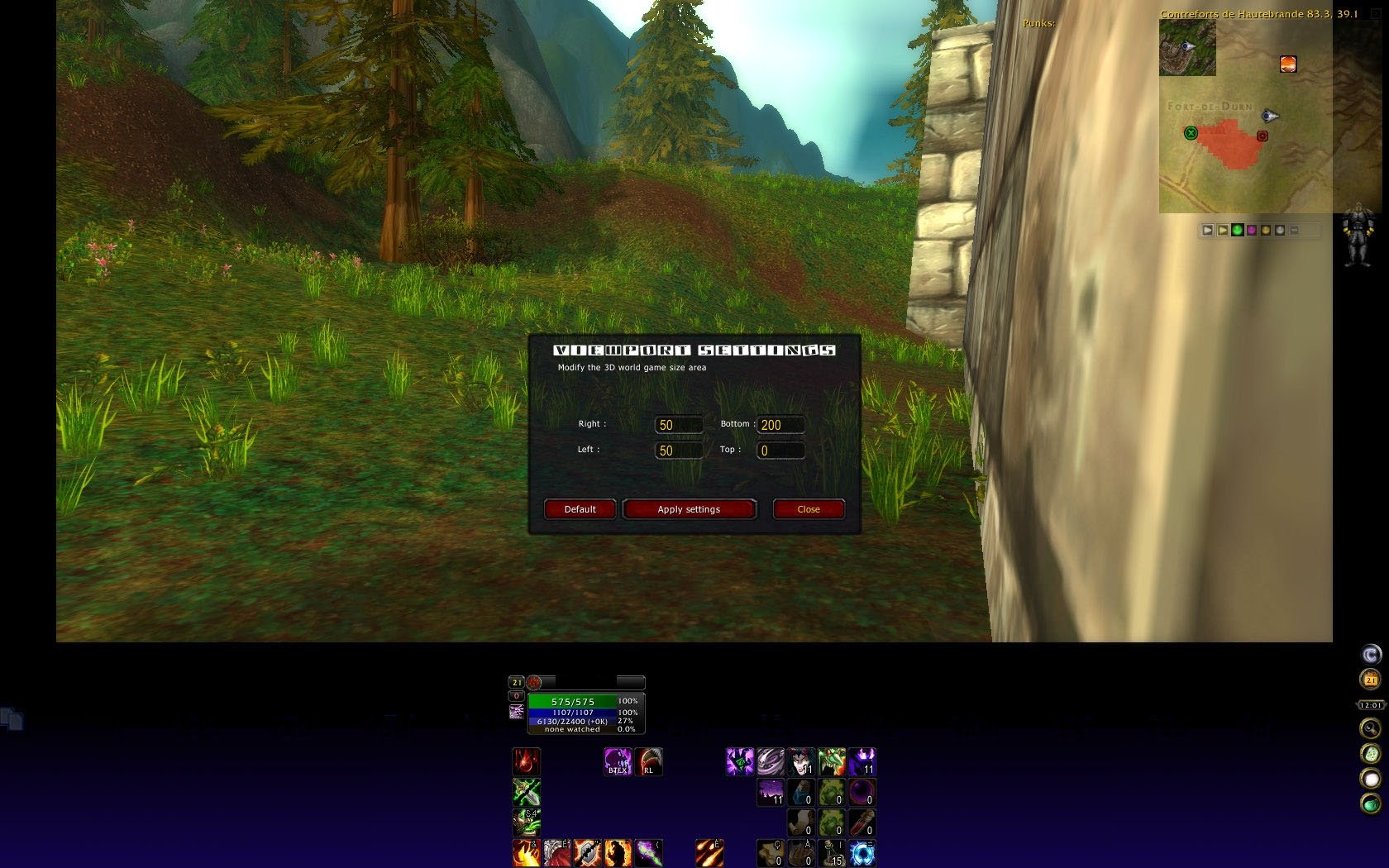
- Modify the 3D rendering area with viewport function,
- Work in any resolution,
- Low memory usage & standalone addon (no libs or dependency are needed).
Ready to use skins :
--------------------
The following skins are packaged and are ready to use via the option menu:
- Dark Shadow serie, Simple Black, Fade Black, Red Fury, Warcraft Classic, Ice Dragon, Ice Dragon remake (credits to Xaphiroth), Ice Dragon remake with pet bar(credits to Xaphiroth), Wall, White Dragon.
! WARNING IF YOU ARE UPDATING BTEX: backup your Interface\Btex\Skin folder if you use custom skin !
Skins package know to work (Thanks to all artists sharing artwork !):
----------------------------------------------------------------------
You can download and use this skins too (copy them to /Interface/Addons/btex/skins/ and just use "Custom skins") :
- Official supported skins (30+ skins) : http://www.wowinterface.com/downloads/info7906-BTex.html#optional
- Btex Skin - taurend (http://www.wowinterface.com/downloads/info13384-BtexSkin-taurend.html#info)
- Gumpsterface 2 (http://www.wowinterface.com/downloads/info14490-Gumpsterface2.html)
- Gumpsterface for Btex ver 3.3 (http://www.wowinterface.com/downloads/info14171-GumpsterfaceforBtexver3.3.html)
- Horde Skin 4 btex 2.7.3 (http://wow.curse.com/downloads/wow-addons/details/hskinz.aspx)
- Red Btex Nexus skin (http://www.wowinterface.com/downloads/info13261-RedBtexNexusskin..html)
- Rusty BTex Skin (http://www.wowinterface.com/downloads/info13875-RustyBTexSkin.html)
- Telnets UI Art (http://www.wowinterface.com/downloads/info12078-v1.html).
- Eskin (http://wow.curse.com/downloads/wow-addons/details/eskin.aspx)
- BTEX Purple Flame Skin (http://www.wowinterface.com/downloads/info13491-BTEXPurpleFlameSkin.html)
- Sewell XArt Pack (http://www.wowinterface.com/downloads/info7100-SewellXArtPack.html)
- Xart Skin - Warcraft 3 elven (http://www.wowinterface.com/downloads/info7123-XartSkin-Warcraft3elven.html)
- Fairy Tale Style using XArt (http://www.wowinterface.com/downloads/info6712-FairyTaleStyleusingXArt.html)
- ElectrofluxTextronator (http://www.wowinterface.com/downloads/info6847-ElectrofluxTextronator.html)
Last Update :
-------------
V2.9.1 27 August 2009
- Fixed Chat Window layer(strata) when changing the strata of arts.
- Added skin Demonic (cause its no more aviable to download on curse :s)
V2.9.0 21 August 2009 - **this is a major release before V3.0**
- Added support for position (move main texture anywhere on screen),
- Added support for layer (choose what 'Strata' you want to use),
- Added support for Vertex colors (override colors of textures),
- Added support for Viewport function (resize the game windows size).
For full version history, please see here: http://www.wowinterface.com/downloads/info7906.html or read the VersionHistory.txt
Translation :
-------------
Language aviable for all frame config are :
- default : english/US,
- french,
- German localisation, thx to Kuhglöckchen a.k.a. Blocki
- Russian localisation, kiss to troyen
- zhTW and zhCN, credits to wowui.cn,
- I'm using google translator, i need HELP for other languages, thanks =)
Contribute :
------------
Just use http://www.wowinterface.com/downloads/info7906.html using the provided forms(comments tab) or send me a PM on wowinterface.
I'm looking for artists and someone to translate the remaining languages.
How do I use it?
-----------------
First unzip it into your interface\addons directory. For more info on installing, please read install.txt.
Now just run WoW and once logged in, type '/bx menu' to get the options screen and choose a skin.
Support :
---------
Please post all errors and suggestions on http://www.wowinterface.com/downloads/info7906.html using comments tab, or send me a PM on wowinterface.
FAQ :
-----
How do I run menu config ? type "/bx Menu" or "/Btex menu" in the chat windows.
Why the download is so big ? it's because it contain many images.
How do i load custom skins? Copy TGA or BLP files to /interface/btex/skins/ directory, and use the "custom texture" options on the top dropdown menu. Write name file without the end "-1.tga". Exemple: for 'blabla' skin, you have 4 tga named blabla-1.tga, blabla-2.tga. Write 'blabla' in the custom name.
Do the skin support transparency ? yes. Via images files and via WOW API.
Can i use BLP file? Yes. use custom load skin, and do like with any other tga file.
Is there any PSD template i can use to make my own skin ? Sure, just go to : http://www.wowinterface.com/downloads/info11906-BtexPSDforskinmaking.html I recommand you use The GIMP or if you have money Photoshop. BUT, remember to share !
How can i share my artwork : create an account on wowinterface then upload it here as a plugin : http://www.wowinterface.com/downloads/info7906-BTex.html#optional
Change Log - BTex
*********************
* Version History : *
*********************
V2.9.1 27 August 2009
- Fixed Chat Window layer(strata) when changing the strata of arts.
- Added skin Demonic (cause its no more aviable to download on curse :s)
V2.9.0 21 August 2009 - **this is a major release before V3.0**
- Added support for position (move main texture anywhere on screen),
- Added support for layer (choose what 'Strata' you want to use),
- Added support for Vertex colors (override colors of textures),
- Added support for Viewport function (resize the game windows size).
V2.8.0- 5 August 2009
- Reworked option menu with custom fonts to display well,
- Added support for BLP files.
V2.7.3- 7 March 2009
- Added German localisation, thx to Kuhglöckchen a.k.a. Blocki
- Added Russian localisation, kiss to troyen
v2.7.2- 7 February 2009
- Corrected "Close" button bug
- removed dutch locals, cause there is no dutch client .. oups sorry for the mistake ;=)
v2.7.1- 2 February 2009
- Added zhTW and zhCN localisation, thanks to wowui.cn
- Added Dutch localisation, thanks to Menjes
v2.7.0- 31 January 2009
- Added a grid function, so you can set interface easier
v2.6.0- 15 January 2009
- Added Width parameter, so you can adapt any skin to your resolution, if default value dont look well (depend on skin and scale used)
v2.5.1 - 14 January 2009
- Fixed the bug with blizzard UI calendar
v2.5.0 - 8 december 2008
- added support for localisation
- added french localisation
- added more slash command : /btex menu, /btex reset, /btex remove, /btex custom
v2.4.3 - 8 december 2008
- fixed error => "Message: ..\AddOns\Btex\Btex.lua line 583: attempt to index global 'a' (a boolean value)"
v2.4.2 - 6 december 2008
- fixed text placement in frame, with normal game font
- fixed a bug with dropdown menu
v2.4.1 - 4 december 2008
- fixed issue on "custom texture pack frame"
v2.4 - 4 december 2008
- corrected minor bug in slash command
- added a new skin : White Dragon
v2.3.1 - 20 November 2008
- removed "panel button" coming from dev version
v2.3 - 19 November 2008
- added support for multiple character
- corrected "/bt" already used by bartender to "/bx", you can use "/btex" too
- corrected a bug form dropdownUI Menu
- added a new skin : Wall
v2.2 - 7 November 2008
- added support for transparency for normals and customs skins,
- added "Reset to default"button,
- added 2 new skins : Simple Black, Fade Black.
v2.1 - 5 November 2008
- added support for texture stretch. you can now set Height form 1 to 1200,
- added "no texture" in the dropdown menu,
- added "Load custom skin", where you can put your own pack of skin directly from game, without modifying the LUA code.
v2.0 - 3 November 2008 :
- reworked all the code,
- removed ACE 2.0 support, only WoWAPI hard coded (no libs are needed now),
- added menu option for skin choosing and other settings,
- added new skins,
- full LUA frame coded.
V1.0 - 26 November 2007:
- Initial release.
For full version history, please see here: http://www.wowinterface.com/downloads/info7906.html
Originally posted by Grandesa ok thanx to Born I have been able to make my own viewport.. I have decided to make the following instructions for all those who might still be having trouble.. If anyone might see where i can shorten these by using hotkeys assigned in Photoshop, please let me know. Otherwise hope the following will help every1.
In my process I have created a full image (2048 x 512) of what my bar looks like and used Photoshop to slice (crop) to make it work ingame, otherwise if you already have your image sliced into the 4 correct sizes. Make sure you background is transparent and correct channels (24 bit RGB). The following is the bar i have created to use.. Its size is only 1024 x 256 due to the limits of photobucket. .
1. From full bar image ( 2048 x 512 / 2048 x 256) Crop the following size from your image ( 512 x 512 / 512 x 256 ).
2. Dble click cropped area (opens the pic in new window).
3. Use marque tool (marching ants) to highlight/select area you want to be transparent.
4. Goto channel tab ( look in the tool bar list on the right side of your prog. defaulted to be in same area as the layers tab).
5. Choose "create new channel". Photoshop auto names it alpha1 and auto creates it as an 8 bit alpha.
6. Do the Following hotkey command. Hit "Shift + Control + I" (this should auto invert the marqueed selection or you can goto "Select - Inverse" from your menu bars at the top of your Photoshop").
7. Then hit "Control + Alt + I" This should auto fill the area you wish to be seen with white. otherwise use your paint tool and paint the selected area white with flood fill option from toolbar
8. Now go back to the layer tab to see original image. deselect the marquee tool to make the "marching ants" disappear.
9. Save file as "example-1.tga". Photoshop should auto choose the following option, otherwise set the save file to "32 bit/pixel" no compress.
10. repeat for the remaining pieces.. you should have a total of 4 saved .tga files for your bar. "sample-1.tga", -2.tga, -3.tga, -4.tga".
Hope this helps.. I will attempt in the future to create a short walkthru video that will help those who want to see it done visually.
ok thanx to Born I have been able to make my own viewport.. I have decided to make the following instructions for all those who might still be having trouble.. If anyone might see where i can shorten these by using hotkeys assigned in Photoshop, please let me know. Otherwise hope the following will help every1.
In my process I have created a full image (2048 x 512) of what my bar looks like and used Photoshop to slice (crop) to make it work ingame, otherwise if you already have your image sliced into the 4 correct sizes. Make sure you background is transparent and correct channels (24 bit RGB). The following is the bar i have created to use.. Its size is only 1024 x 256 due to the limits of photobucket. .
1. From full bar image ( 2048 x 512 / 2048 x 256) Crop the following size from your image ( 512 x 512 / 512 x 256 ).
2. Dble click cropped area (opens the pic in new window).
3. Use marque tool (marching ants) to highlight/select area you want to be transparent.
4. Goto channel tab ( look in the tool bar list on the right side of your prog. defaulted to be in same area as the layers tab).
5. Choose "create new channel". Photoshop auto names it alpha1 and auto creates it as an 8 bit alpha.
6. Do the Following hotkey command. Hit "Shift + Control + I" (this should auto invert the marqueed selection or you can goto "Select - Inverse" from your menu bars at the top of your Photoshop").
7. Then hit "Control + Alt + I" This should auto fill the area you wish to be seen with white. otherwise use your paint tool and paint the selected area white with flood fill option from toolbar
8. Now go back to the layer tab to see original image. deselect the marquee tool to make the "marching ants" disappear.
9. Save file as "example-1.tga". Photoshop should auto choose the following option, otherwise set the save file to "32 bit/pixel" no compress.
10. repeat for the remaining pieces.. you should have a total of 4 saved .tga files for your bar. "sample-1.tga", -2.tga, -3.tga, -4.tga".
Hope this helps.. I will attempt in the future to create a short walkthru video that will help those who want to see it done visually.
TYVM Born.. that will help me alot.. I'll give it a shot and hopefully it will work.. if it does i I will post my UI on here for all 2 use freely.. I will have more created soon.. I have read the posts here and alot of peeps are looking for center map UI designs. I will try to create a few more with that option, square and round alike along with a SS of mine in action ingame along with what addons I am using to get my custom look.. TY again
Use Adobe PhotoShop & make sure you have the background Transparent at all times when creating the artwork. Use Layers effectively, Merge Visible when you're all done and before doing the steps below, have your 2048x256 image chopped up into 4 images all sized 512x256. Then do the following on each one and save as a TGA.
Press CTRL and left-click the Layer Thumbnail in the Layers Palette (Which is a much cleaner way than using the Wand). Once you see the artwork outlined, go to the Channels Palette. Create a New Alpha Channel by clicking on the button at the bottom of the palette that looks like a small document.
With your selection still active, select the new channel (should already be labeled Alpha)... and move your mouse inside that selection on your image, then press Shift F5. Set your Fill Color to White.
You're now ready to save your 512x256 image as a TGA file. Go to File, Save As, and ensure your images are labeled what you wish to call them.. and in the appropriate order, add a -1, -2, -3 or -4 at the end of each file name, just before the .tga.
if you are using photoshop, make sure your work in RGB mode and add an alpha channel on the background (you will not see it as transparent, but black).
you can look down here messages from kattostryker,
Code:
In Photoshop go to the "Channel" tab. It'll be with Layers.
Make a new Channel and name it "Alpha".
The channel will be black and white. Everything that's "white" in the alpha channel will be solid in the final artwork. Everything that is "black" will be completely transparent. Shades of grey will be levels of transparency in between.
ok I dont know if I'm just being a noob or not.. I am attempting to make my own viewport graphic.. I'm still getting a black background behind mine instead of being transparent. I have attempted to make it work using Jasc Paintshop and Photoshop. I have not been successful. after making the full bar image. what process do I need to do in Photoshop to make the alpha channel work correctly for each of the 4 sections of the viewport graphic? here are the steps I have tried after making my overall pic using Photoshop
1. used magic wand - selected black area to be transparent - went to the channels tab - added alpha channel
2. chose crop tool. selected correct size area ( 512 x512)
3. cropped image area and saved file as .TGA - chose 32 bit option to save as ***-1.tga (uncompressed of course)
I repeated steps 2, 3 for each of the total 4 sections.
was I to instead crop correct area, then add alpha? and then save as suggested to work?
was i supposed to save as a 24 bit uncompressed?
I do appologize that I am missing something so simple it eludes me.. Can I request a step by step process how I correctly create one in Photoshop?
Here is what I am currently working with. I know that is not the correct size. My image host will not support the total correct size. but hopefully this will help give you an idea of what I might be doing wrong.
Originally posted by Bornabe tiggy, I just wanted to take the time to thank you so much for BTex. I fell in love with your addon so much a while back that I ended up creating artwork for it, and even releasing an entire UI compilation using BTex as the starting point. Thanks a ton man!
tiggy, I just wanted to take the time to thank you so much for BTex. I fell in love with your addon so much a while back that I ended up creating artwork for it, and even releasing an entire UI compilation using BTex as the starting point. Thanks a ton man!
Originally posted by Goldschlager If the answer to this is already in here im sorry musta missed it but anywho here it goes.
For some of the skins available for Btex when u stretch them to the screen (width) it throws off the center, mainly the ones im interested in are the ones that use a Mini Map in the center, I know there are settings to adjust the skin offest to move it to the right but it wont let u enter negative numbers, is there another way to adjust it to the right more to help center some skins? I play on a 1440x900 res
If the answer to this is already in here im sorry musta missed it but anywho here it goes.
For some of the skins available for Btex when u stretch them to the screen (width) it throws off the center, mainly the ones im interested in are the ones that use a Mini Map in the center, I know there are settings to adjust the skin offest to move it to the right but it wont let u enter negative numbers, is there another way to adjust it to the right more to help center some skins? I play on a 1440x900 res
Originally posted by artphilia Ok, I'll look into the size thing. I created a theme a while ago that fits my 1440 just fine - gonna compare the 4th image against each other.
yup
you can just adjsut it with, width and heigh parameters
In Photoshop go to the "Channel" tab. It'll be with Layers.
Make a new Channel and name it "Alpha".
The channel will be black and white. Everything that's "white" in the alpha channel will be solid in the final artwork. Everything that is "black" will be completely transparent. Shades of grey will be levels of transparency in between.
Hope that helps.
And a question for Tiggy.
Could there be an option to have two textures?.. As in have one along the bottom as used now and then one (Possibly different.) along the top.
Because i'm using PS elements it wasn't exactly like you said but know that helped me get it in NO TIME. Thank you so much for you help. For anyone using PS-elements. You can to select the the visible section of you're art work with selection tool and go to Select>Save selection Then save it as Alpha 1. And done! Thanks again for this awesome addon and great community of users willing to help out.
Originally posted by artphilia First of all: Can't live without it. Period. You ever stop this add-on - I'm royally screwed
But now to the issues I am having since 2.9.1: (I compared it with 2.9.0 again and again and can't find something in the Btex.lua that looks obviously broken, but I'm far from having much of a clue)
"Demonic" shows up last in the pull-down menu, but selecting it did not do anything for me. I can manually select it as "D" in Custom Skin, but then it's too small (which could be an issue with the skin - gotta check that.) At some point it even had entries from Atlas instances after "Demonic", but that cleared up eventually. Hope that did make some sense
No error-message I recall however.
ok ty for infos
maybe there is some conflict name with another addon, i'll check that. for the size, it's the original art size. you have to resize it.
First of all: Can't live without it. Period. You ever stop this add-on - I'm royally screwed
But now to the issues I am having since 2.9.1: (I compared it with 2.9.0 again and again and can't find something in the Btex.lua that looks obviously broken, but I'm far from having much of a clue)
"Demonic" shows up last in the pull-down menu, but selecting it did not do anything for me. I can manually select it as "D" in Custom Skin, but then it's too small (which could be an issue with the skin - gotta check that.) At some point it even had entries from Atlas instances after "Demonic", but that cleared up eventually. Hope that did make some sense
You have just downloaded by the author . If you like this AddOn why not consider supporting the author? This author has set up a donation account. Donations ensure that authors can continue to develop useful tools for everyone.
*Clicking the donate button above will take you to PayPal.com
*Clicking the donate button above will take you to Pledgie.com