An example of the “Found” alert button for Fumblub Gearwind.
This warning appears when searched-for mobs are already cached at log in.
The options window with a list of all mobs currently being searched for.
NPCScan
_NPCScan tracks seldom-seen rare mobs by proximity alone, making the old “/targetexact …” macros obsolete. It has the same range as those targeting macros, but you won't have to mash any buttons. Just go about your business and let _NPCScan alert you when it finds something.
Details
The Cache
This addon doesn't use nameplates or mouseover units to find rares. Instead, it checks your creature cache for the moment a rare mob is found. There is one catch to this technique however: Once a mob is “found”, _NPCScan won't be able to find it again until your cache is cleared. If you find a rare mob's corpse—Dirkee for example—you would have to clear your cache before _NPCScan would find Dirkee again. Thankfully, clearing your cache is a safe and simple matter.
Clearing Your Cache
To clear your cache, follow these straightforward steps:
Exit World of Warcraft.
Delete the “Cache” sub-directory inside your World of Warcraft folder. For example on a standard Windows XP installation, you would delete the folder “C:\Program Files\World of Warcraft\Cache”.
Note: Windows Vista and Windows 7 users see this info to find your Cache folder in WoW's Virtual Store.
That's it. Log in after you've done that and you'd be able to find Dirkee a second time. It's completely safe because WoW will recreate your Cache folder after you log in again.
Cache Warning
If a rare mob is already cached when you log in, _NPCScan will print a warning message with the names of those mobs. If you see this message but still want to find the listed NPCs again, it's time to clear your cache by following the above procedure. Otherwise, you can quit searching for those mobs using the Search options window detailed below. You can suppress this log-in message using the main options pane, as well.
“Found” Alert
When a rare mob is found, _NPCScan alerts you by playing a loud and distinctive sound, making your screen pulse red, and displaying an animated targeting button. To get a feel for what this alert looks and sounds like, try the “Test Found Alert” button in the addon's main Interface Options panel. (See the Options section below.)
Targeting Button
When clicked, the targeting button tries to target the most-recently-found mob. You can also bind a key to hit this button. If the default button position isn't to your liking, you can move it while holding your <CTRL> key.
Note: The button cannot be shown during combat. In the unlikely case that you do find a rare while fighting, the button will appear after you leave combat. You will still hear the alert however, and the name of the mob will appear in your chat log.
Options
_NPCScan's main options window can be accessed from the Interface Options menu. This panel includes a “Test Found Alert” button, various ways to customize the alert sound, and an option to suppress cache warning messages on log-in.
New sounds can be added to the alert sound dropdown menu by installing SharedMedia-type addons.
Search List
The list of mobs that _NPCScan searches for can be modified easily through the Interface Options panel, however it comes pre-configured with most rare Outlands and Northrend mobs. To access the mob list, type “/npcscan”.
Grayed out NPCs in a list aren't being searched for, either because they're cached, a pet, or not needed for their achievement.
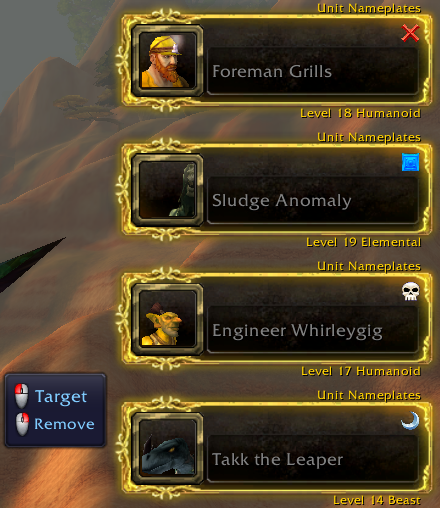
The first tab available lists Custom NPCs that you can enter or remove manually. NPCs that are already cached show a red “X” in the first column. You can add or remove Custom NPCs with the [+] and [-] buttons at the bottom right.
All other tabs control achievements like Bloody Rare and Frostbitten. These tabs show an additional column on the right with green check marks for completed achievement mobs. You may enable or disable tracking each achievement with its tab's checkbox.
The two checkboxes at the top left of the pane allow greater control over which mobs to search for. “Search for tamable NPCs” controls searching for mobs tamable by hunters (to avoid the issues detailed in the “Limitations” section below). “Search for completed Achievement NPCs” allows you to keep looking for mobs you no longer need for achievements.
Finding NPC IDs
A mob's NPC ID is its unique identification number, and it can be found on sites like WowHead or WowDB. For example, search for the mob “Dirkee” on WowHead and go to the mob's page. That page's URL will look like “http://www.wowhead.com/?npc=32500”; 32500 is Dirkee's NPC ID.
Limitations
The only problem mobs for _NPCScan are tamable beasts. Even when you run across the tamed version, _NPCScan gets tricked into thinking that mob is nearby. In order to prevent those false positives, _NPCScan only shows alerts for tamable mobs in their original zones. That is, if you spot Loque'nahak in Dalaran instead of Sholazar Basin where it usually patrols, _NPCScan would ignore it. When one of these tamable mob false-alarms happens, you'll see a message in your chat window explaining why it got ignored.
Since this makes tamable mobs are so difficult to track, I suggest you fly to the tamable mob's zone first, clear your cache, and then search for it. Any time you pass through a populated area like Dalaran, you risk filling your cache with popular rare pets.
Change Log - NPCScan
3.3.0.2: Fixed a bug in version detection. Arcturis should be added to player scan lists now.
add to World of Warcraft\WTF\Account\AccName\Realm\Char\SavedVariables\_NPCScan.lua
below " ["NPCs"] = {"
the 4 mob already there can be overwriten
pretty complete list of all rares, if u have any missing tell me
everything with "--" can be safely placed in the .lua, i grped every zone so u can leave out what u dont want, also its no problem to have dubble mob those provided by npscan by default and those in the list.
Originally posted by Saiket There's no option to turn that off. You can remove line 425 of _NPCScan.lua if you don't want anything printed to the chat frame.
Originally posted by trclocke I could care less when NPCScan determines it's found a false alarm. Is there any way to prevent the addon from announcing this?
There's no option to turn that off. You can remove line 425 of _NPCScan.lua if you don't want anything printed to the chat frame.
Originally posted by ernieedog I put NPC_scan in the addon folder but it's not showing in the list. Any solutions?
If it doesn't show up in the addons list, that means WoW can't find it in the right folder. First, if you installed the mod while WoW was running, just try restarting the game. If that didn't help, double check where you unzipped it to, and maybe check WoWInterface's Installation FAQ if it still isn't being found. In case you're using Windows Vista/Windows 7, you might need to check this thread on the WoW forums for special instructions.
Originally posted by IRID1UM Just go to your WoW directory and delete the directory called Cache. Or open the cache directory and navigate through the subfolders to creaturecache.wdb and delete that.
A few pages back I put some instructions on how to delete the file automatically when starting WoW
Here is what I posted 4 pages ago:
actually i would use this code for the .bat file and place it inside the wow folder. then create a shortcut to it on your desktop, that way you can change the icon to a wow icon this code also closes the CMD window automatticly.
Code:
E:
cd World of Warcraft\Cache\WDB\enUS\
del creaturecache.wdb
cd..
cd..
cd..
start Launcher.exe
CLS
EXIT
Originally posted by Infernus Well today I downloaded the NPCScan and the other one into the Addons file but when I open WoW why can't I see the addon when I press the addon button when choosing characters?
If the mods don't show up in your addon list (or the addon list button is missing entirely), that means the game can't find them since they're in the wrong place. There's a good walkthrough for putting them in the right place here on WoWInterface; Hopefully it will help.
Well today I downloaded the NPCScan and the other one into the Addons file but when I open WoW why can't I see the addon when I press the addon button when choosing characters?
Just go to your WoW directory and delete the directory called Cache. Or open the cache directory and navigate through the subfolders to creaturecache.wdb and delete that.
A few pages back I put some instructions on how to delete the file automatically when starting WoW
Here is what I posted 4 pages ago:
Quote:
I've created a .bat file for deleting the cache file each time I start WoW. A .bat file more or less is a selfmade executable file which can contain simple instructions (for those who dont know).
Simply open any text editor and write the following
Code:
E:
cd games\world of warcraft\Cache\WDB\enUS\
del creaturecache.wdb
cd..
cd..
cd..
wow.exe
Note that you'll have to insert YOUR drive letter (E: in my case) and WoW path for it to work (Note that the "enUS" may be different, depending on which client you use). It changes to the hard disk where WoW is installed, enters the cache directory, deletes the cache file, goes back out to the root directory and starts WoW.
Simply save this file to your desktop as start.bat or start.txt and rename txt to bat. Doubleclicking it will launch it.
There probably is a more sophisticated way of writing this, but it works This way I can always find all rare spawns on each login.
Have fun!
Originally posted by agaphyr is it possible to scan for items? this would be interesting for the rare spawning books in dalaran for the 'higher learning'-archievment for example.
There's currently no way to search for objects like Higher Learning books or chests or herbs/ore.
Originally posted by frozndevl So, there is the option to delete something if you've found it before. For example, I was flying around and got notified about the time-lost proto. Unfortunately, it was just the corpse. A few days later I noticed the option to remove the TLPD from the options menu, and I did.
Now, according to the front page, I would need to delete the cache entirely to be able to detect it again. If this is the case, did I actually do anything by deleting it from the menu?
The "cache" is completely different from the /npcscan list. The list in game shows which mobs _NPCScan will search for. The cache on the other hand is a file in your World of Warcraft folder that can only be cleared by deleting it. See the section "Clearing Your Cache" in the description for details on where that file is.
As long as you add the TLPD back to the /npcscan menu (and you clear your cache out), _NPCScan should be able to find the drake again.
You have just downloaded by the author . If you like this AddOn why not consider supporting the author? This author has set up a donation account. Donations ensure that authors can continue to develop useful tools for everyone.
*Clicking the donate button above will take you to PayPal.com
*Clicking the donate button above will take you to Pledgie.com