| Go to Page... |

Pictures
File Info
| Compatibility: | Fury of Hellfire (6.2) |
| Updated: | 08-08-15 09:47 PM |
| Created: | 02-28-09 03:40 PM |
| Downloads: | 159,298 |
| Favorites: | 902 |
| MD5: |
AuctionLite 

View the WowInterface discussion thread here:
http://www.wowinterface.com/forums/s...ad.php?t=20756
Overview
AuctionLite makes it easy to use the auction house!
With AuctionLite, you can:
- Buy
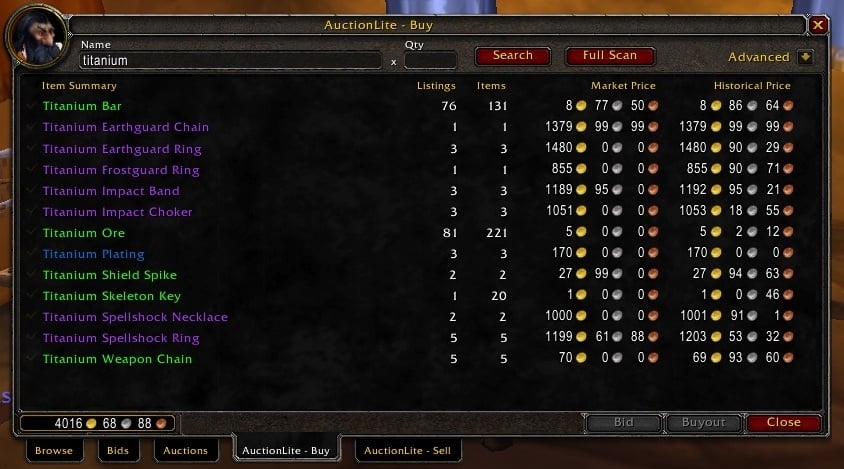
- Show all listings for an item on a single page, sorted by per-item price
- Buy out multiple listings at the same time
- Search for your favorite items with a single click
- Sell
- Suggest prices based on the current competition
- Create multiple listings at the same time
- Scan
- Download all auction house data in just seconds
- Track historical prices and find deals
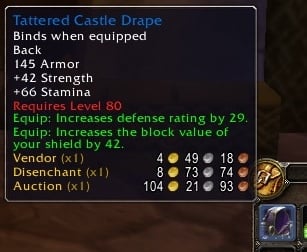
- Add tooltips to items with vendor, auction, and disenchant prices
In short, AuctionLite tries to make the most common auction house tasks as simple as possible, and AuctionLite strives for minimal overhead and clutter in its interface.
If you enjoy using AuctionLite, please consider making a donation via Paypal:

Quick Start
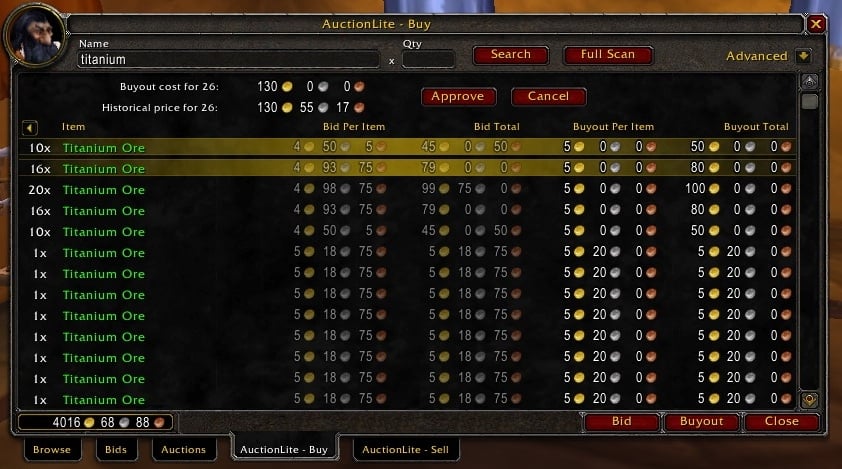
Buying items: Type an item name into the "Buy" tab and click "Search". (You don't have to fill in a quantity.) Select the listings you want to buy, click "Buyout", and then click "Approve". Due to Blizzard's addon restrictions, you will have to click "Approve" once for each listing.
- Control-right-click an item in your bags from any AH tab to search on the "Buy" tab
- Use shift-click and control-click to select and purchase multiple listings
Selling items: Drag an item from your bags into the "Sell" tab slot. Enter the number and size of the stacks you'd like to sell, adjust prices if necessary, and click "Create Auction".
- Alt-right-click an item in your bags from any AH tab to load it into the "Sell" tab
- Click on any competing auction to undercut that auction
- Use the tab key to jump between fields
- Hit enter to start the auction
Scanning: Click "Full Scan" on the "Buy" tab. When scanning is complete, you'll get a list of the best deals currently available at the auction house.
- If you navigate away from the deals page, use "Show Deals" in the "Advanced" menu to return
- If you are disconnected during scanning, try disabling the fast scan feature (use "/al config")
Other features:
- To search for your own listings (and your competition), choose "Show My Auctions" from the "Advanced" menu
- Click the checkmark next to any item in the "Buy" tab to mark it as a favorite, and then select "Show Favorites" from the
- "Advanced" menu to search for all your favorites at once
- Go straight to your preferred tab when opening the AH
- Open all your bags when visiting the AH
For more details, read on!
Buying Items
To buy an item with AuctionLite, type the name of the item you want into the "Buy" tab and click "Search" (or alt-right-click an item in your bags).
If your search returns only one kind of item, you'll see a list of all auctions for that item, sorted by the per-item buyout price (or per-item bid price, if no buyout price is available). Your own auctions are shown in yellow, and auctions where you are the highest bidder will show the bid price in yellow. If you want to bid or buy out a listing, click on it, click "Bid" or "Buyout", and then approve the purchase. You can select multiple auctions by control-clicking or shift-clicking.
If your search returns multiple items, you'll see a summary of the kinds of items that your search encountered. Click on any of these summary lines to see all listings for that item, as described above. To get back to the summary page, click the arrow button in the upper-left corner of the frame.
If you know exactly how many items you want to buy, type the number into the "Quantity" field when searching. AuctionLite will then offer to fill your order by selecting the auction listings that minimize the total cost to you. AuctionLite is smart enough to find the absolute minimal cost in most cases, including cases where you can buy more items to get a lower total price. If you would like AuctionLite to consider the resale value of excess items when making this decision (e.g., you ask for 10 items, but you'd rather get 11 at 101g than 10 at 100g), then you can enable the "Consider Resale Value" option (use "/al config"). If AuctionLite suggests purchasing more items than you originally requested (for any reason), it will show you to the expected resale value of the excess items and the net cost of the items you requested.
AuctionLite will incorporate all of the price data that your searches return into its historical data. Thus, the prices for items you frequently purchase will always be up to date, even if you don't do full auction house scans.
Favorites
On the "Buy" tab's summary display, you can click on the checkmark to the left of any item to mark it as a favorite (click again to unmark). Then, you can choose "Show Favorites" in the "Advanced" menu to quickly search for all of your favorites. Your favorites will also get bumped to the top of the summary display in any future search.
If you'd like to create multiple favorites lists, you can do so in the AuctionLite configuration screen (use "/al config"). Your lists will show up in a submenu of the "Show Favorites" menu option. When creating a favorites list, you can type any item name, but you must type the entire name exactly as it appears in-game (case does not need to match). You can also drag-and-drop items into the "Add an Item" field.
Your Auctions
In order to see auctions that you're selling, choose "Show My Auctions" from the "Advanced" menu. AuctionLite will search for all your current auctions so that you can see your competition. On the summary screen, any items where you've been undercut will be shown with a red background.
If you'd like to cancel an auction, just click the item, select your listing(s), and click "Cancel". You can select and cancel multiple auctions by using shift-click and control-click.
If you'd like to cancel auctions in bulk, you can do this in a number of ways. First, clicking the "Cancel" button when nothing is selected will cancel all auctions on that page (and all auctions period, if you're on the summary screen!). Second, control-clicking the "Cancel" button will cancel all such auctions that have been undercut (i.e., auctions that have a competitor at a lower per-item price). Finally, you can right-click any line in the summary screen in order to cancel all auctions or cancel undercut auctions.
Selling Items
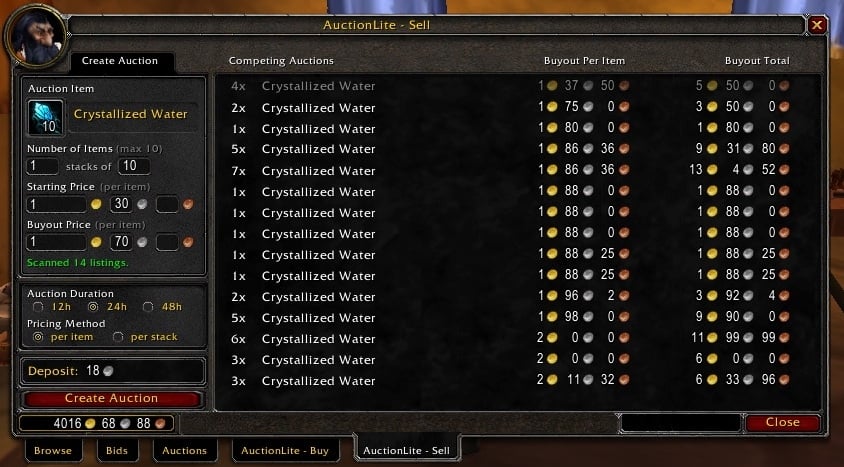
To sell an item with AuctionLite, start by dragging the item into the box on the "Sell" tab (or by alt-right-clicking an item in your bags). AuctionLite will immediately scan for all competing auctions, and it will suggest an appropriate price for your auction. In addition to setting bid and buyout prices, you can also tell AuctionLite to post multiple stacks of a certain size.
AuctionLite will display a list of competing auctions so that you can verify the accuracy of AuctionLite's suggestions. Any listings shown in gray are listings that AuctionLite considered to be outliers--that is, listings with abnormally low prices. AuctionLite typically chooses a price that is just less than the lowest non-outlier price, since this price is a reasonable estimate of the market-clearing price. If you disagree with AuctionLite's estimate of the market-clearing price, you can click on any auction in the display to undercut it by a few percent. Listings shown in yellow are your own auctions; clicking on them will fill in the prices you set for those auctions.
AuctionLite also shows some historical data for your item in the chat window. Every time AuctionLite scans for an item, it will incorporate the latest prices into its historical data, weighted according to the frequency of its scans.
If you want to sell items quickly, you can use alt-right-click even on the "Browse" tab in order to move an item into the "Sell" tab. If you approve of AuctionLite's initial suggestions, hitting enter will post the auction immediately.
If you'd like to save settings for a particular item, click the down arrow near the item slot in the "Sell" tab. Selecting any of these options will save your current stack size, stack count, or prices for future use.
AuctionLite's pricing scheme can be customized in the AuctionLite options screen (Escape -> Interface -> Addons -> AuctionLite).
Scanning
You can tell AuctionLite to scan all listings in the auction house by clicking the "Full Scan" button on the "Buy" tab.
After all auction data has been retrieved, AuctionLite will analyze the data and record the current market prices for later use. AuctionLite will take into account how frequently and how recently you've scanned, so there's no need to worry about how often you scan. Note that if you cancel the scan by closing the auction house, no data will be recorded.
AuctionLite also stores all price data from your scans in the "Buy" and "Sell" tabs, so even if you don't scan frequently, the prices for items that you buy and sell will stay up to date.
Deals
After you've completed a full scan, AuctionLite will search for all items in the auction house that are underpriced relative to previous scans, and it will show you these items ranked by potential profit. If you navigate away from this screen, you can recall the list of deals from the last scan of your current AH visit by going to "Advanced" and clicking "Show Deals". To set the parameters for this search, go to the AuctionLite options screen (in the "Advanced" menu) and set the minimum profit and the minimum discount relative to previous prices.
Tooltips
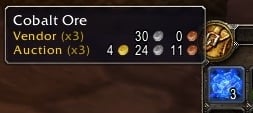
AuctionLite adds a few lines to the bottom of each item tooltip in the game to show the vendor sell price, the expected disenchant value, and the estimated auction house value. The disenchant value is based on the current value of the disenchanted dust/essences/shards at the auction house.
By default, AuctionLite shows the value for the entire stack. However, if you'd like to see the per-item price instead of the per-stack price, just hold the shift key. If you'd like this to be the other way around (i.e., per-item prices normally, and per-stack prices when holding shift), this setting can be adjusted in the AuctionLite options screen (type "/al config").
If you'd rather not see AuctionLite's information in tooltips, they can be customized or disabled in the AuctionLite options screen (type "/al config"). You can set each line in the tooltip so that it always appears, never appears, or appears only if the applicable data is available (e.g., if we have an auction house price for that item).
External API
AuctionLite supports Tekkub's GetAuctionBuyout interface, so any addon that uses this interface will automatically be able to retrieve price data from AuctionLite.
In addition to this standard interface, other addons that wish to use AuctionLite's data can use the following methods:
price = AuctionLite:GetDisenchantValue(link or id[, suffix])
price = AuctionLite:GetAuctionValue(link or id[, suffix])
These methods return AuctionLite's disenchant and auction prices, which are the same numbers you see in the tooltips. You can pass an item string, an item link, or an item ID, but note that if you pass an ID for an item that typically has a suffix (e.g., "of the Monkey"), then you need to provide the suffix as the second argument. AuctionLite doesn't track bid prices--just buyout prices.
Acknowledgments
Huge thanks to cyberloras for keeping AuctionLite up to date with the most recent WoW API changes!
Thanks to mysticalos, kolenka, phanx, inexstinctus, vebev, and haghala for contributing bug fixes and features, and thanks to the Curse/WowAce/WowInterface community for their bug reports and suggestions.
Many, many thanks to the folks who took the time to translate AuctionLite to other languages!
- Brazilian Portuguese: phalk, renanwar
- French: Pettigrow, FreakyGreaser
- German: nesta666, Farook, archiv, callmechris, tholas1234, hero66
- Italian: _YuSaKu_, kappesante
- Korean: eljei, san0713, kdw112, maknae, netaras, Sayclub, ohmytrance
- Russian: Vampik, RustamIrzaev, StingerSoft, apeironfag, KVVV
- Simplified Chinese: tnt2ray, wowuicn, dh0000
- Spanish: karrash76, virginc
- Traditional Chinese: tnt2ray, a9012456, s8095324, zhTW
Version History
Changes in v1.8.14:
- Updated for WoW 6.2
Changes in v1.8.13:
- Updated for WoW 6.0 (thanks, cyberloras!)
- Uses exact search when shift key is held (thanks, cyberloras!)
Changes in v1.8.12:
- Updated for WoW 5.4
Changes in v1.8.11:
- Updated for WoW 5.3
Changes in v1.8.10:
- Updated for WoW 5.2
- Battle pets can only be sold one at a time (Blizzard restriction :-()
- Updated disenchant tables (thanks, Inexstinctus!)
Changes in v1.8.9:
- Added Italian and Spanish localizations
Changes in v1.8.8:
- Updated for WoW 5.1
- Battle pets can now be sold via AL
- Updated localizations
Changes in v1.8.7:
- Fixed glyph taint issues (Thanks, Szandos!)
Changes in v1.8.6:
- Added Brazilian Portuguese localization (Thanks, Phalk & Renanwar!)
Changes in v1.8.5:
- More WoW 5.0.4 updates (Thanks, Mysticalos!)
Changes in v1.8.4:
- Updated for WoW 5.0.4 (Thanks, Cyberloras!)
Changes in v1.8.3:
- Updated for WoW 4.3
Changes in v1.8.2:
- Updated for WoW 4.2
- Fixed a bug on the "open all bags" feature
- Fixed the assertion failures in QueryAuctions (hopefully)
Changes in v1.8.1:
- Added placement options for tooltips in AL tabs
- Added the option to undercut auctions by a fixed amount
- Fixed problems when spam-cancelling auctions
- Fixed Lua error when creating a new favorites list
Changes in v1.8:
- Fix bug that would occasionally cause unintended purchases when clicking through long lists of approvals (hopefully!)
- Added placement options for tooltips in AL tabs
Changes in v1.7.4:
- Fix breakage in previous version due to missing localization string
Changes in v1.7.3:
- You can now repeatedly click the cancel button to cancel multiple auctions
- Workaround for fast scan errors (due to a Blizzard bug)
Changes in v1.7.2:
- No changes; version number incremented to resolve packager problems
Changes in v1.7.1:
- Eliminate UpdateDeposit() Lua errors
Changes in v1.7:
- Updated for WoW 4.0.1
- Due to a change in Blizzard's interface, mass buyout now requires a click on the "Approve" button for each listing :-(
- For the same reason, posting partial stacks has been disabled :-(
Changes in v1.6.4:
- Hold the control key when placing an item in the "Sell" tab to skip the scan
- Menus showing your favorites lists are now sorted
- Fixed a bug with per-stack saved prices
Changes in v1.6.3:
- More updates for WoW 3.3.3
- Fix auction duration bug
- Use new multi-auction interface
- Use old graphics for all parts of "Sell" tab (for now!)
Changes in v1.6.2:
- Updated for WoW 3.3.3
Changes in v1.6.1:
- Updated disenchant tables
- Updated localizations
Changes in v1.6:
- Multiple favorites lists can now be created in the AuctionLite configuration screen
- Stack size, stack count, and price preferences can be saved on a per-item basis in the "Sell" tab using the menu next to the item's icon
- Localizations have been updated
- Future localizations will be populated automatically from Wowace.com, resulting in much faster turnaround time
Changes in v1.5.4:
- Suppress Blizzard auction messages in all chat windows
- Fixed another bug in tooltip vendor prices
Changes in v1.5.3:
- Fixed bug in stack creation when posting auctions
- Fixed bug in tooltip vendor prices
Changes in v1.5.2:
- Updated for WoW 3.3
Changes in v1.5.1:
- Fixed bug when default stack size is set to 1
- Updated French and Russian localization files
Changes in v1.5:
- Click the "Cancel" button on the "Buy" tab in order to cancel all auctions of yours on the current display (clicking on the "Show My Auctions" screen will cancel everything)
- Control-click as above to cancel auctions that have been undercut
- Right-click items on the summary screen in order to "Cancel All Auctions" or "Cancel Undercut Auctions"
- Confirmation screen when cancelling auctions with bids
- Confirmation screen when posting items below vendor price
- Chat window shows total value of auctions posted
- Fixed bug in automatic stack size computation
- Updated localization files
Changes in v1.4.1:
- Fixed Lua error that appeared when one of your favorites is not found.
Changes in v1.4:
- Suppress "Auction won" spam when buying/selling/cancelling auctions
- Show how many auctions are yours in the "Buy" tab's summary screen
- Auction data storage can now be disabled/cleared
- Localization updates
Changes in v1.3:
- Updated for WoW 3.2
- AL now uses WoW's built-in vendor data, reducing its memory footprint by a few megabytes
- AuctionLite:GetVendorValue() and GetSellValue are no longer supported
Changes in v1.2.1:
- Fixed bug in German translation
- Added Russian translation
Changes in v1.2.0:
- Specify one extra stack in the "Sell" tab to sell excess items as a smaller stack (e.g., if you have 50 items and you enter "3 stacks of 20", AL will create 2 stacks of 20 and 1 stack of 10)
- When the number of stacks to sell is changed, the size of the stacks will be adjusted if necessary (e.g., if you have 20 items and you specify 20 stacks, AL will set the size to 1 automatically)
- New options for customizing the default number/size of stacks
- Vendor data updated for WoW 3.1.1
- Miscellaneous bug fixes
Changes in v1.1.5:
- Updated for WoW 3.1
Changes in v1.1.4:
- Fixed bug when sorting favorites that aren't currently in the AH
Changes in v1.1.3:
- Much smarter algorithm for choosing listings in "Buy" tab
- Buying/canceling the last listing for an item will take you to the summary view
Changes in v1.1.2:
- Recently sold items no longer appear in "Show My Auctions"
- All favorites appear in "Show Favorites", even if they're not currently in the AH
- Updates to German localization
Changes in v1.1.1:
- Number formatting fix in "Sell" tab
- Scanner bug fix
Changes in v1.1:
- Sortable columns
- Improvements in auction searching/purchasing
- Localized to French, German, Korean, and Chinese (many thanks to the translators listed above!)
Changes in v1.0.3:
- Better error messages in "Buy" frame
- Suppress stack-splitting dialog when shift-clicking in "Buy" frame
- Added tooltips to mailbox items
Changes in v1.0.2:
- Fixed Lua error
Changes in v1.0.1:
- Fixed money icon flicker in tooltip
- Fixed control/alt-right-click when not at auction house
- Shift-left-click now works on the "Buy" tab
Changes in v1.0:
- Implemented Tekkub's GetSellValue and GetAuctionBuyout
- Undercut auctions are shown in red in the "Show My Auctions" list
- Fixed some display bugs in tooltips
- Save your place in the "Buy" frame when going to/from summary view
- Allow zero buyouts (i.e., bid only)
- Don't undercut historical prices
- Miscellaneous config screen cleanup
Changes in v0.9:
- Tooltips now show expected disenchant value
- Tooltips use money icons
- Better configuration options for tooltips
Changes in v0.8:
- You can cancel your own auctions by selecting them and clicking "Cancel" (use shift-click and control-click to select and cancel many auctions)
- See your own auctions and your competition by choosing "Show My Auctions" in the "Advanced" menu
Changes in v0.7:
- Fast scanning: Perform a full AH scan in seconds!
- Deals: Show profit opportunities after each scan
- Favorites: Mark your favorite items and search for them quickly
- Control-right-click jumps to "Buy" tab and searches
- Alt-right-click jumps to "Sell" tab and searches
- Jump to your preferred tab when opening the AH
- Open all bags when opening the AH
- Show time elapsed and time remaining on searches
- Options GUI is available in Blizzard's interface options panel
- Upgraded to Ace3
Changes in v0.6:
- Items with jewels/enchants are labeled with a "+"
- Add tooltips to merchant, buyback, and loot
- Allow vendor multiplier to be set for when selling an item with no history
- Compatible with AuctionMaster
- Yet more bug fixes and UI tweaks
Changes in v0.5:
- Select multiple items in the "Buy" tab with control/shift
- Toggle per-stack and per-item prices in tooltips with shift
- Add tooltips to item links
- Allow users to set undercut percentage
- Bug fixes and UI tweaks
Changes in v0.4:
- Added "Buy" tab for easily searching and buying out auctions
- Added alt-right-click shortcuts
- Remember custom prices within a given visit to the auction house
- Reuse previous auction prices by clicking on your own auctions in the display
- Added external API
- Numerous bug fixes and UI enhancements
Changes in v0.3:
- Prices can be specified as per-item or per-stack prices
- Undercut specific auctions by clicking on them in the "Competing Auctions" display
- Tooltips can be disabled if desired
- Preferences for duration and pricing method are now saved
- When absolutely no data is available, we use triple the vendor price
- Numerous bug fixes
Changes in v0.2:
- Added tooltips with vendor sell price and auction value
- Your own auctions are now shown in yellow in the "Competing Auctions" display
- Pricing algorithm will no longer undercut your own auctions
- Added warning when your buyout is less than the vendor price
- Fixed bugs in the auction scanner and the auction display
Changes in v0.1:
- Initial version
 |
Comment Options |

| Slaxi81 |
| Find More Posts by Slaxi81 |
 10-05-17, 08:20 AM
|
||
|
Premium Member
 Forum posts: 3
File comments: 9
Uploads: 0
|
__________________
Customprofile |
|

|

|
| Customprofile |
| View Public Profile |
| Send a private message to Customprofile |
| Find More Posts by Customprofile |
| Add Customprofile to Your Buddy List |
|
09-01-17, 09:56 PM
|
|
|
A Deviate Faerie Dragon
Forum posts: 13
File comments: 276
Uploads: 0
|
I remember really liking this. It's too bad it's not maintained. =(
__________________
spiralofhope.com |
|
|
|
| spiralofhope |
| View Public Profile |
| Send a private message to spiralofhope |
| Visit spiralofhope's homepage! |
| Find More Posts by spiralofhope |
| Add spiralofhope to Your Buddy List |
|
05-19-15, 08:03 PM
|
|
|
A Kobold Labourer
Forum posts: 0
File comments: 2
Uploads: 0
|
auctioneerSuite has also been driving me crazy over the years, it breaks all the time, and it won't ever fully update with the wowmatrix updater.
 I've used that add on for years because when i works it works great. This week it;'s been so incredibly buggy that it would make Luna errors pop up non stop. I've had enough. I hope this add on works! I've used that add on for years because when i works it works great. This week it;'s been so incredibly buggy that it would make Luna errors pop up non stop. I've had enough. I hope this add on works!Update x2: It works nice and it remembers your stack sizes and the prices (click the tiny arrow, near where you'd enter the gold amount.) Update: Ok I tried selling some things, joy the alt + right click works for posting an auction it doesn't mess up my stacks or forget item prices I think I might like this. I'll come back in a few days. Auction master I tried that one and it won't remember any prices at all and that was my first ah add on I used years ago so fyi that one is broken too. Am so glad this one works. The plain ah drives me crazy. XP I realy don't want to have to write down everything, the prices and what sold again. (I did that as a newbie yuck.) Thanks for making this I like!  I hope this doesn't brak all the time like A.S. gerr.. I hope this doesn't brak all the time like A.S. gerr..
Last edited by darkocean : 05-19-15 at 09:29 PM.
|
|
|
|
| darkocean |
| View Public Profile |
| Send a private message to darkocean |
| Visit darkocean's homepage! |
| Find More Posts by darkocean |
| Add darkocean to Your Buddy List |
|
02-03-15, 09:22 AM
|
|
|
A Cyclonian

Forum posts: 43
File comments: 24
Uploads: 0
|
AWESOME addon.
I just found this addon the other day having become disgusted with auctioneerSuite...
 I find this addon very intuitive and easy to use.  Is this addon still in active development...?  |
|
|
|
| demanl |
| View Public Profile |
| Send a private message to demanl |
| Visit demanl's homepage! |
| Find More Posts by demanl |
| Add demanl to Your Buddy List |
|
12-19-14, 03:08 PM
|
||
|
A Murloc Raider
 Forum posts: 7
File comments: 114
Uploads: 7
|
Re: auctionlite not working
Check the settings on it.
Show vendor price Always
Last edited by Sasenna : 12-19-14 at 03:09 PM.
|
|
|
|
|
| Sasenna |
| View Public Profile |
| Send a private message to Sasenna |
| Visit Sasenna's homepage! |
| Find More Posts by Sasenna |
| Add Sasenna to Your Buddy List |
|
12-03-14, 06:11 PM
|
|
|
A Kobold Labourer
Forum posts: 0
File comments: 1
Uploads: 0
|
auctionlite not working
Hi guys please help me!!!! I know this is an awesome addon as my friend has it but for some reason it is not working for me!!
 The thing that isn't showing is the extra lines on items which show how much money you will get when you sell to vendor/disenchant/auction.... this is an example of my friends item http://puu.sh/dfWcX/40f695d5ea.jpg and well when I hover over my item it only shows vendor somone please help me get this feature!!! I will love you forever!!!! The thing that isn't showing is the extra lines on items which show how much money you will get when you sell to vendor/disenchant/auction.... this is an example of my friends item http://puu.sh/dfWcX/40f695d5ea.jpg and well when I hover over my item it only shows vendor somone please help me get this feature!!! I will love you forever!!!! |
|
|
|
| xFluffyx |
| View Public Profile |
| Send a private message to xFluffyx |
| Visit xFluffyx's homepage! |
| Find More Posts by xFluffyx |
| Add xFluffyx to Your Buddy List |
|
10-19-14, 04:34 AM
|
|
|
A Fallenroot Satyr
Forum posts: 27
File comments: 201
Uploads: 7
|
__________________
|
|
|
|
| Imithat |
| View Public Profile |
| Send a private message to Imithat |
| Visit Imithat's homepage! |
| Find More Posts by Imithat |
| Add Imithat to Your Buddy List |
|
10-15-14, 01:42 AM
|
||
|
A Fallenroot Satyr
Forum posts: 21
File comments: 21
Uploads: 2
|
Re: Update?
can dl from ace http://www.wowace.com/addons/auctionlite |
|
|
|
|
| Felwhisper |
| View Public Profile |
| Send a private message to Felwhisper |
| Visit Felwhisper's homepage! |
| Find More Posts by Felwhisper |
| Add Felwhisper to Your Buddy List |
|
09-28-14, 08:14 AM
|
|
|
A Molten Giant
Forum posts: 758
File comments: 2021
Uploads: 37
|
Update?
Will this bis updated for 6.0 and WoD? Its already outdated currently because you still can't sell pet cages without problems
|
|
|
|
| Tonyleila |
| View Public Profile |
| Send a private message to Tonyleila |
| Visit Tonyleila's homepage! |
| Find More Posts by Tonyleila |
| Add Tonyleila to Your Buddy List |
|
09-15-13, 03:16 PM
|
|
|
Premium Member
Forum posts: 258
File comments: 165
Uploads: 2
|
Anyone else having issues since 5.4?
__________________
"I'm very feminine. And I'll beat the crap out of ANYONE who disagrees!" |
|
|
|
| Unkn |
| View Public Profile |
| Send a private message to Unkn |
| Visit Unkn's homepage! |
| Find More Posts by Unkn |
| Add Unkn to Your Buddy List |
|
03-17-13, 08:25 PM
|
|
|
A Molten Giant
Forum posts: 758
File comments: 2021
Uploads: 37
|
I love this addon please update for 5.2
The pet cage bug is realy anoying - but this is the best AH addon!
|
|
|
|
| Tonyleila |
| View Public Profile |
| Send a private message to Tonyleila |
| Visit Tonyleila's homepage! |
| Find More Posts by Tonyleila |
| Add Tonyleila to Your Buddy List |
|
12-30-12, 03:06 PM
|
|
|
A Murloc Raider
Forum posts: 4
File comments: 64
Uploads: 0
|
Battlepets CAN now be posted in the newer version, and it doesn't throw any errors, but I'm getting some really weird results. If I try to post any battlepets when I have other battlepets in my bags, it scans just fine, posts just fine, but then I realize that the items it actually put up on the AH are completely random.
I'll alt-click on a Brown Snake, post it for 70 silver or whatever, then look in my bag and both Brown Snakes are still there. It had posted my Fossilized Hatchling for 70 silver instead, along with a Green Wing Macaw! Good thing I realized it quickly so I could take them down before anyone noticed. It seems the mod can't differentiate between pet cages when posting the items, simply grabbing a number of Pet Cages at random. One of the auctions I posted did actually post the correct critters, but I think that was a fluke, as I tried it another four times and each time it grabbed the wrong ones. |
|
|
|
| vexis58 |
| View Public Profile |
| Send a private message to vexis58 |
| Visit vexis58's homepage! |
| Find More Posts by vexis58 |
| Add vexis58 to Your Buddy List |
|
11-29-12, 10:43 AM
|
|
|
A Theradrim Guardian
Forum posts: 60
File comments: 69
Uploads: 0
|
Message: GameTooltip:SetHyperlink(): Unknown link type
Time: 11/29/12 17:40:29 Count: 19 Stack: [C]: ? [C]: in function `SetHyperlink' Interface\AddOns\AuctionLite\Tooltip.lua:388: in function `SetAuctionLiteTooltip' Interface\AddOns\AuctionLite\BuyFrame.lua:1361: in function `BuyButton_OnEnter' [string "*:OnEnter"]:1: in function <[string "*:OnEnter"]:1> Locals: (*temporary) = GameTooltip { 0 = <userdata> beautyShadow = <table> { } SetInboxItem = <function> defined =[C]:-1 SetBuybackItem = <function> defined =[C]:-1 shoppingTooltips = <table> { } SetMerchantItem = <function> defined =[C]:-1 SetQuestLogItem = <function> defined =[C]:-1 SetGuildBankItem = <function> defined =[C]:-1 updateTooltip = 0.11899999603629 SetInventoryItem = <function> defined =[C]:-1 comparing = false SetLootRollItem = <function> defined =[C]:-1 beautyBorder = <table> { } SetAuctionSellItem = <function> defined =[C]:-1 SetBagItem = <function> defined =[C]:-1 SetHyperlink = <function> defined =[C]:-1 SetTradeSkillItem = <function> defined =[C]:-1 SetLootItem = <function> defined =[C]:-1 SetQuestItem = <function> defined =[C]:-1 SetAuctionItem = <function> defined =[C]:-1 } (*temporary) = "[Pint-Sized Pink Pachyderm]" |
|
|
|
| glupikreten |
| View Public Profile |
| Send a private message to glupikreten |
| Visit glupikreten's homepage! |
| Find More Posts by glupikreten |
| Add glupikreten to Your Buddy List |
|
11-18-12, 05:42 AM
|
|
|
Premium Member
Forum posts: 822
File comments: 303
Uploads: 43
|
Re: Error
Same problem as Twidget. Pets are not working.
Code:
16x AuctionLite-v1.8.7\SellFrame.lua:279: attempt to compare nil with number
AuctionLite-v1.8.7\SellFrame.lua:279: in function "ValidateAuction"
AuctionLite-v1.8.7\SellFrame.lua:248: in function "UpdatePrices"
AuctionLite-v1.8.7\SellFrame.lua:523: in function "SetSellData"
AuctionLite-v1.8.7\SellFrame.lua:386: in function "finish"
AuctionLite-v1.8.7\QueryAuctions.lua:372: in function "QueryNewData"
AuctionLite-v1.8.7\QueryAuctions.lua:453: in function "?"
Ace3-r1066\CallbackHandler-1.0\CallbackHandler-1.0-6.lua:147: in function <Ace3\CallbackHandler-1.0\CallbackHandler-1.0.lua:147>
<string>:"safecall Dispatcher[1]":4: in function <string>:"safecall Dispatcher[1]":4
<in C code>
<string>:"safecall Dispatcher[1]":13: in function "?"
Ace3-r1066\CallbackHandler-1.0\CallbackHandler-1.0-6.lua:92: in function "Fire"
Ace3-r1066\AceEvent-3.0\AceEvent-3.0-3.lua:120: in function <Ace3\AceEvent-3.0\AceEvent-3.0.lua:119>

Locals:
nil
__________________
The cataclysm broke the world ... and the pandas could not fix it! |
|
|
|
| Rilgamon |
| View Public Profile |
| Send a private message to Rilgamon |
| Visit Rilgamon's homepage! |
| Find More Posts by Rilgamon |
| Add Rilgamon to Your Buddy List |
|
If you enjoy using AuctionLite, please consider making a donation by clicking the button below.
Support AddOn Development!
You have just downloaded by the author . If you like this AddOn why not consider supporting the author? This author has set up a donation account. Donations ensure that authors can continue to develop useful tools for everyone.
*Clicking the donate button above will take you to PayPal.com

*Clicking the donate button above will take you to Pledgie.com